Instrument cluster
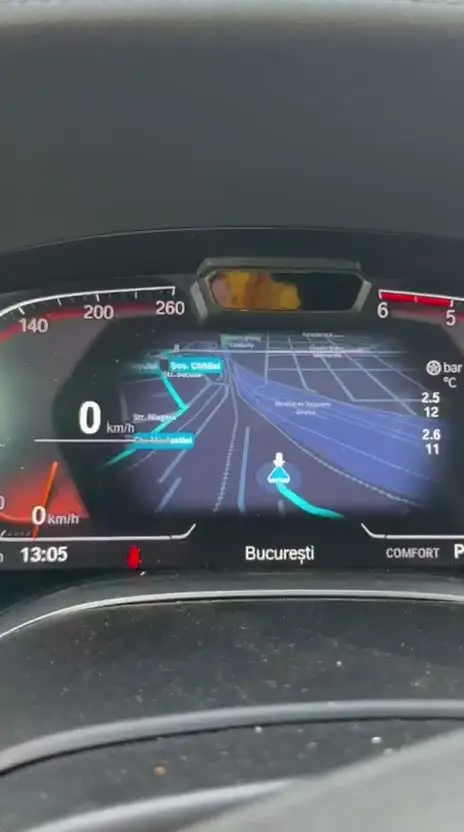
Navigation map in the cluster
The full map across the digital cluster, right behind the steering wheel.
Read the guide →Remote BMW iDrive 7 & 8 upgrades · United States
We install MGU Store on iDrive 7 and iDrive 8, so you can add apps right from the car’s screen: live M Vitals telemetry, Drag Timer, Virtual Dyno and more. We also put navigation in the digital cluster and design custom clusters. Plus everyday coding for F- and G-series BMWs. Everything is done remotely over an ENET cable, wherever you are in the U.S.
The difference
Phone-app coding toggles options your BMW already has. MGU Store goes further: an app store on the iDrive screen, used with the iDrive controller or touchscreen. Browse, install, update and remove apps, add your own sources, or install from a USB drive.
MGU Store is open-source software (GPL-3.0) by an independent developer. It is not a BMW product, and not made by us: we install and configure it on compatible cars.
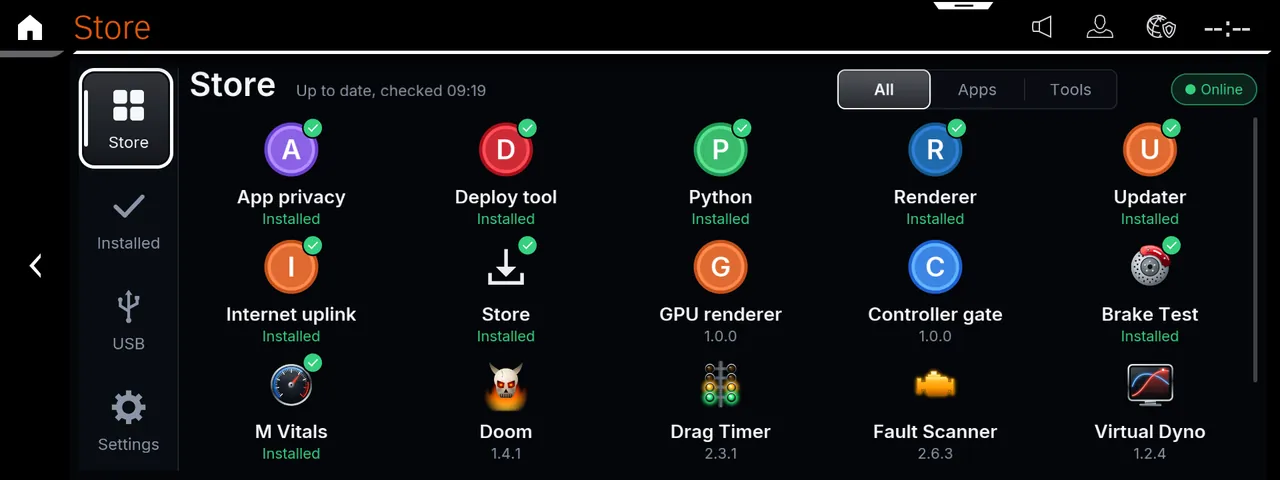
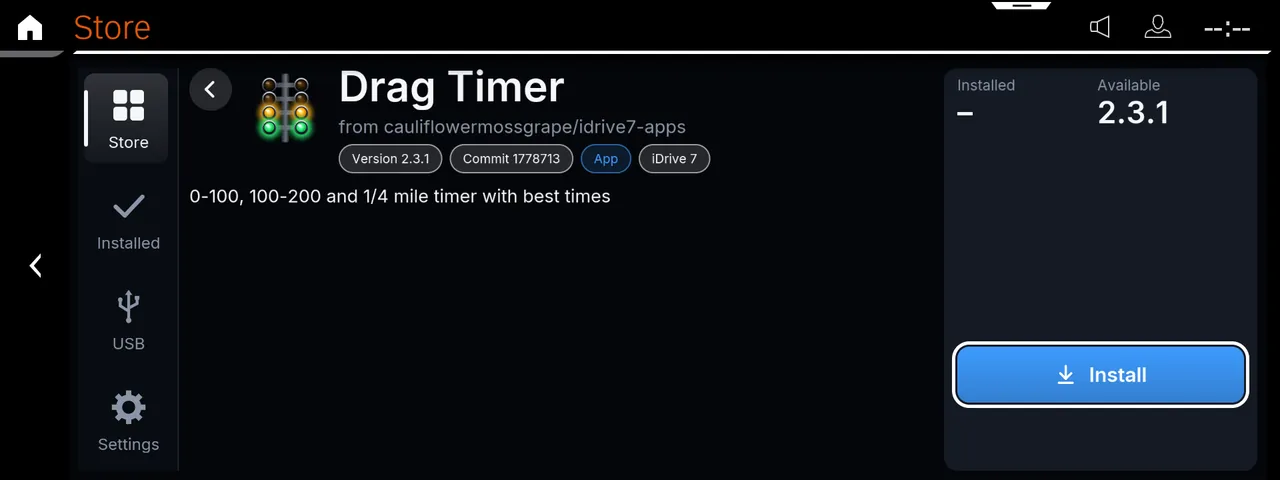
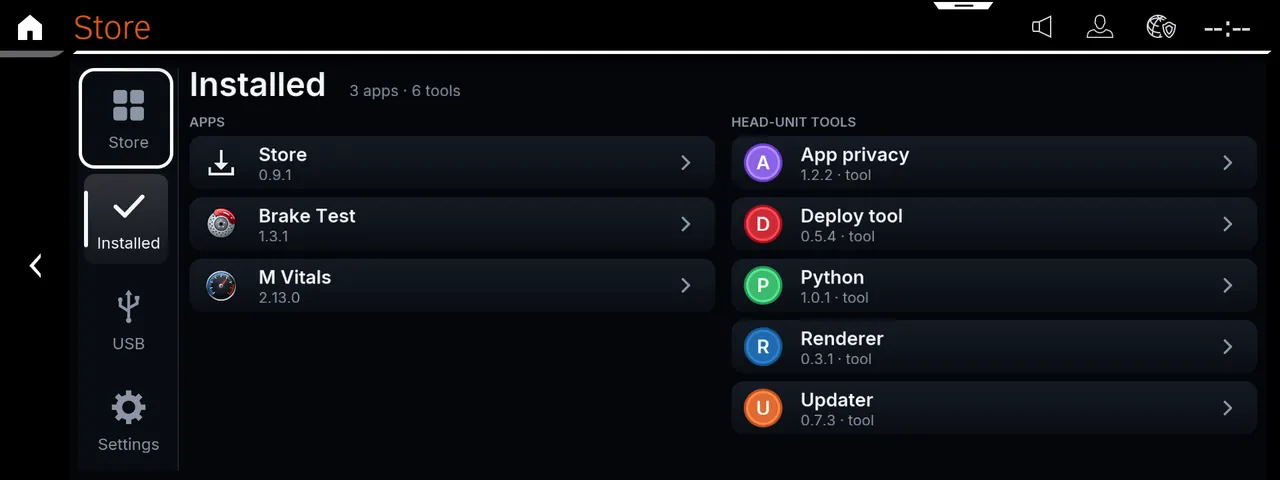
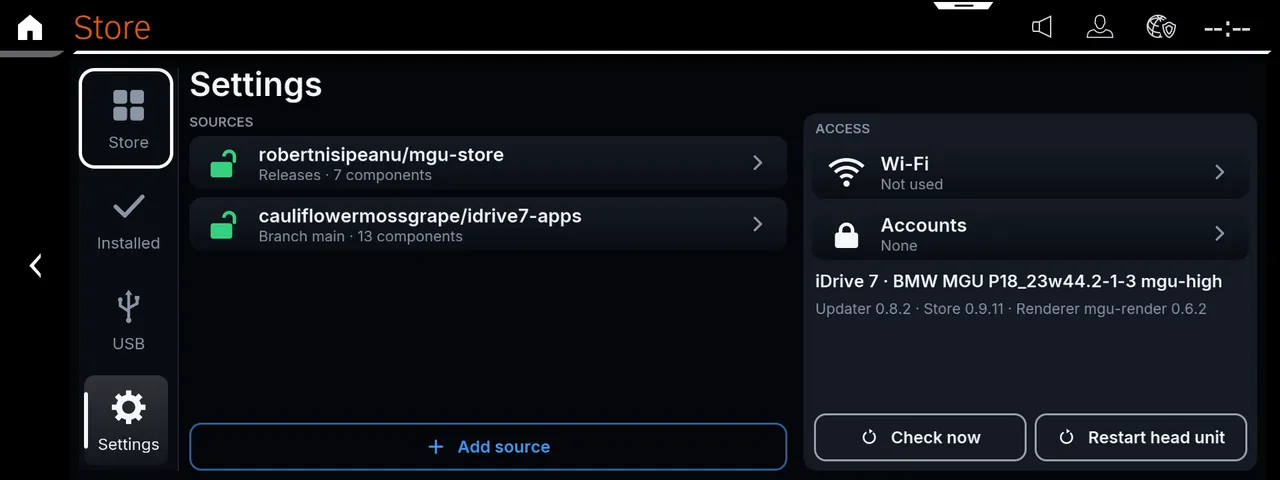
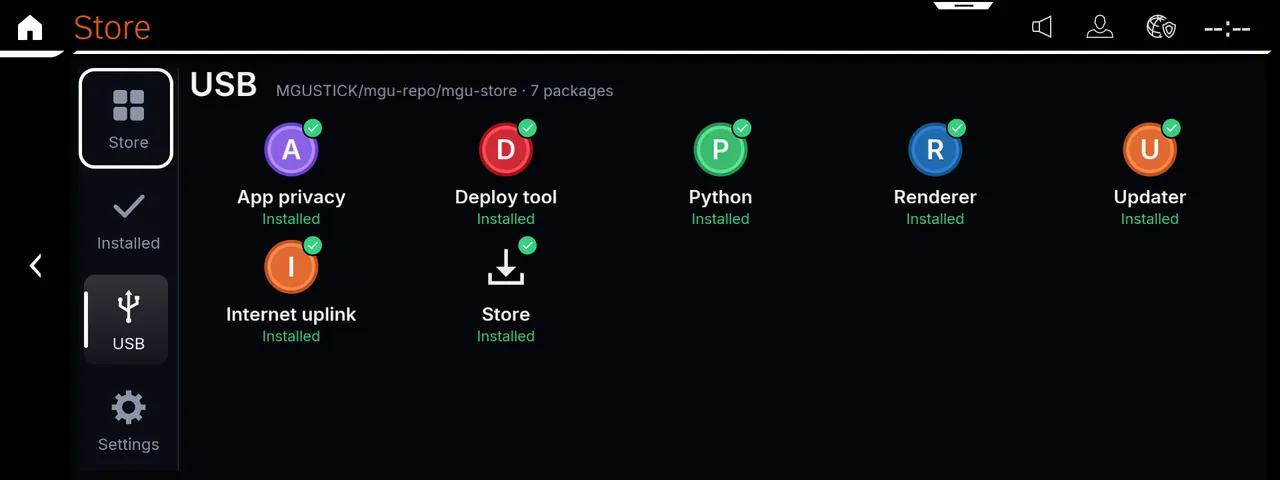
The catalog: apps and tools, with what you already have checked off.
["The catalog: apps and tools, with what you already have checked off.","Each app page: what it does, its version and an Install button.","Everything you have installed, with versions. Remove what you no longer use.","App sources. “Add source” lets you add your own repository too.","Install from a USB drive, with no internet connection in the car."]Performance apps
No phone mount, no OBD dongle, no extra gauges. The apps read the car’s own sensors and run inside iDrive. Timing and braking apps are meant for closed courses and track days.
Also available: Virtual Dyno · Brake Test · Fault Scanner · eDrive. Captures recorded from the real apps with demo data.
Everyday coding · F & G series
Not every upgrade needs iDrive 7. On F- and G-series cars from roughly 2011, we switch on the settings BMW built in but left off: an Auto Start/Stop that stays off, mirrors that fold when you lock, Video in Motion for your passenger and more. Classic coding changes can generally be set back to factory.
Filmed by our team, in real cars
Tap “Add to my check” on anything you like. Your picks follow you to the contact form, and we tell you which ones work on your car. Clips were filmed on European cars, so the clusters read km/h; U.S. cars keep their mph displays.
The full map across the digital cluster, right behind the steering wheel.
Read the guide →A completely new cluster with your graphics, colors and animations.
Read the guide →The camera image shows up directly in the instrument cluster.
Any picture you choose, displayed in the digital cluster.
Open the exhaust flap and switch the xDrive mode from the screen.
YouTube on the center display and in the cluster. Still in development.
Recordings from the car's cameras, played back on the center display.
Set the color and brightness for every lighting zone in the cabin.
What the ambient lighting looks like inside the car after dark.
Temperatures, pressures and g-forces, live on the iDrive screen.
Read the guide →An estimated power and torque curve from a single pull, plus run history.
Read the guide →Learned pressures, clutch data and shift maps, displayed in the car.
Driver and passenger seat settings from the center display.
M style, start-up logo and what appears in the cluster and head-up display.
Video playback on the iDrive screen, with a send-to-cluster option.
Push a picture from the center display straight to the cluster.
Oil temperature, coolant and torque, always visible in the cluster.
Read the guide →A cluster with the road lane in the center, like the newest models.
Read the guide →A traditional speedometer and tachometer on the digital screen.
Read the guide →Your route in the cluster, so the center display stays free.
Read the guide →What can be enabled depends on the head unit, the cluster and the software version. We check every car first and tell you exactly what works.
How it works
Our team works remotely from Europe for owners across the United States. We schedule a time that works in your time zone and stay on the session until everything is tested on your screens.
How a remote session worksModel, year, VIN and what you want. Not sure what system you have? A photo of the screen helps.
We look at the head unit, the cluster and the software version, then tell you honestly what works and send a written quote.
You connect a laptop to the car with an ENET cable, we connect to the laptop. At the end, we check everything together on your screens.
OBD-II to Ethernet. Inexpensive and easy to find online by searching “BMW ENET cable”.
Which cable to buy →Windows, macOS or Linux. No Ethernet port? A USB-to-Ethernet adapter works.
With a healthy battery, ideally on a battery charger or maintainer while we work.
Compatibility
The model year is only a hint. Two cars of the same model and year can have different head units, clusters and software. That is why every quote starts with your VIN. The app store, apps and cluster work need iDrive 7 or 8 (not 8.5); everyday coding works on F- and G-series cars from about 2011.
| Model | Chassis | Notes |
|---|---|---|
| 3 Series | G20 | iDrive 7 and 8. Not iDrive 8.5. |
| M3 | G80 | iDrive 7 and 8. Not iDrive 8.5. |
| 4 Series | G22 / G23 / G26 | iDrive 7 and 8. Not iDrive 8.5. |
| M4 | G82 / G83 | iDrive 7 and 8. Not iDrive 8.5. |
| 8 Series | G14 / G15 / G16 | iDrive 7 cars. |
| X5 / X6 | G05 / G06 | iDrive 7 and 8. Not iDrive 8.5. |
| X7 | G07 | iDrive 7 and 8. Not iDrive 8.5. |
| Z4 | G29 | iDrive 7 cars. |
More models, including the X3, 5 Series and 7 Series, qualify depending on the head unit. See all.
Straight answers
We will
We won’t
Mainly G-series BMWs from the 2019 model year onward with iDrive 7 (MGU) or iDrive 8: the 3 Series G20, 4 Series G22/G23/G26, 5 Series G30 (MGU cars), 7 Series G11/G12 LCI, 8 Series G14/G15/G16, X3 G01, X4 G02, X5 G05, X6 G06, X7 G07, Z4 G29 and the matching M cars. The model year alone does not guarantee anything, so we check every car first. Everyday coding (Auto Start/Stop memory, Video in Motion, lights, comfort settings) also works on F-series cars from roughly 2011.
No. For U.S. customers, every session is remote. You connect a laptop to the car with an ENET cable, we connect to the laptop and do the work while you stay with the car.
Yes. BMW navigation, Apple CarPlay, Android Auto, cameras, parking sensors and the original menus all keep working. New features and apps are added on top.
It depends on your car and the features you choose. Send us the model, year and ideally the VIN, and we reply with what works on your car and a written quote. There is no obligation.
No. We check first and tell you what is possible. The quote and your approval come after that.
Send us your model, year and VIN. We check the head unit, the cluster and the software, then reply with what works on your car and a written quote. Free, with no obligation.